
 English
 中文
 Melayu
Withdrawal Tutorial – VWORLD2 Download APP & H5 WEB Guide

VWORLD2 Download APP Withdrawal Tutorial – Step by Step
Before You Begin: Important Withdrawal Requirements
Before requesting a withdrawal on VWORLD2 Download, ensure your account is fully verified. This includes completing bank account binding and real name authentication exactly as it appears on your bank records. The name you registered with must match your bank account holder name, otherwise your withdrawal will be rejected. Additionally, ensure you have sufficient withdrawable balance in your eWallet, and any bonus funds have met the required wagering (rolling) requirements.
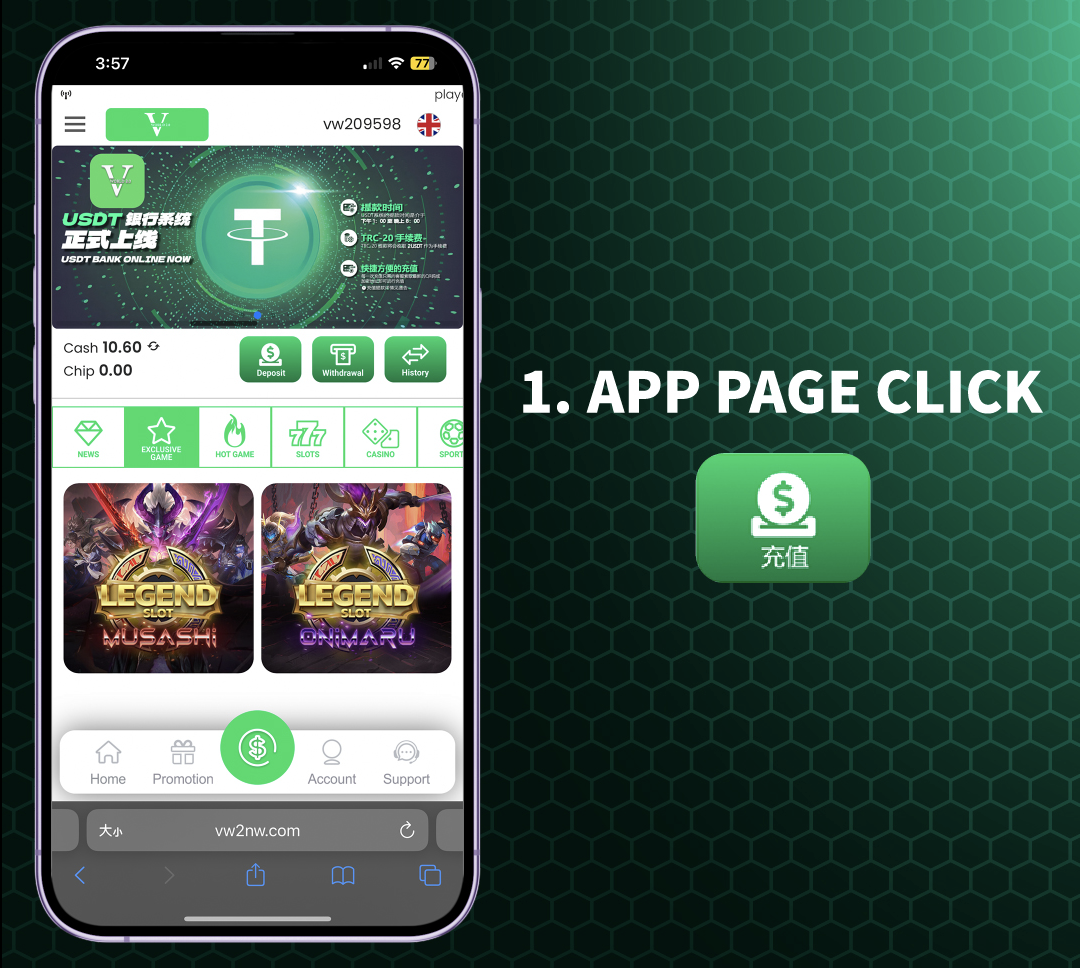
Step 1: Access the APP Main Page
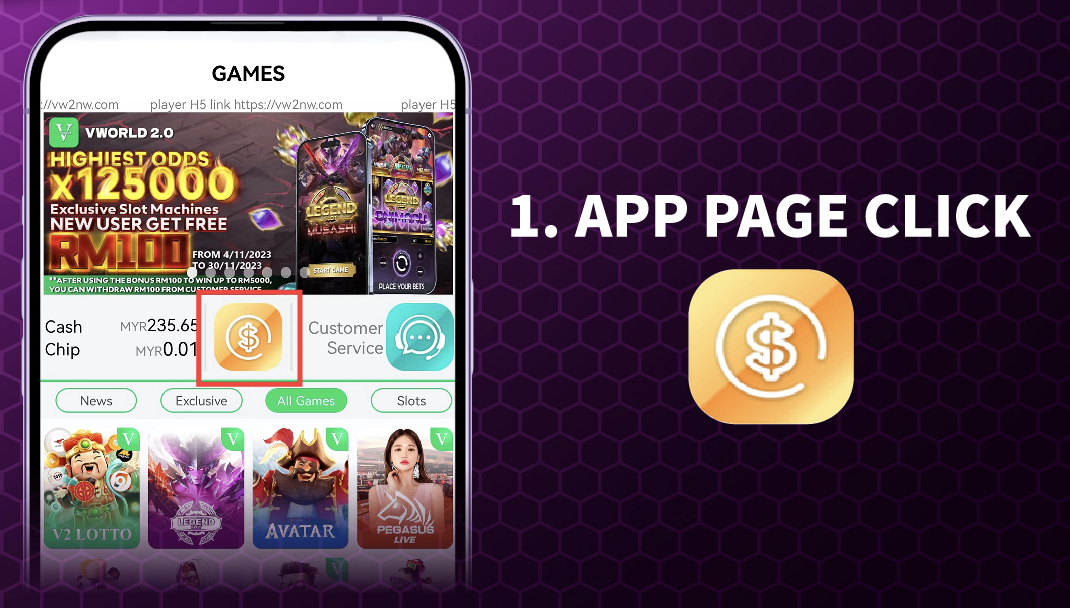
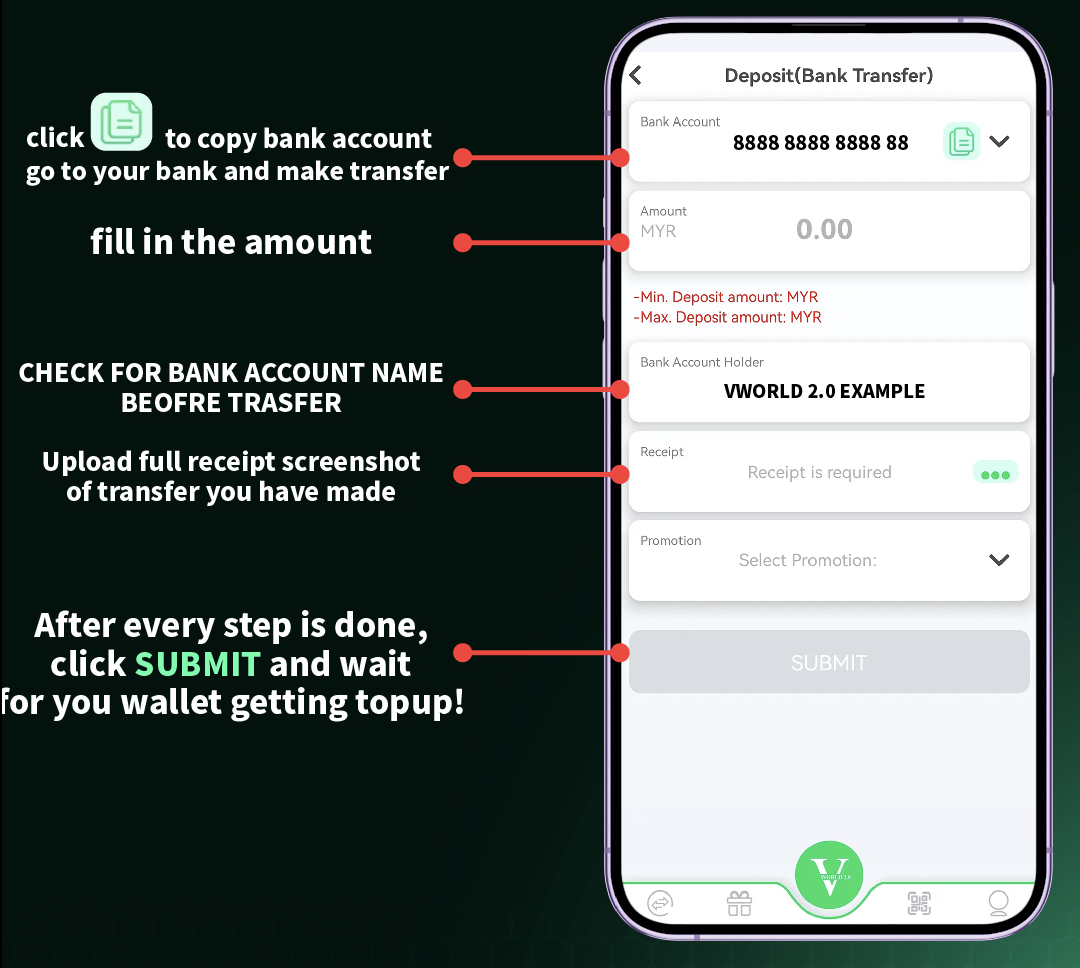
Open the VWORLD2 APP on your mobile device and log in to your account using your registered mobile number and password. Once logged in, you will see the main APP dashboard. Look for the "APP PAGE" button or icon, typically located at the bottom or top of the screen depending on your APP version. Click on "APP PAGE" to access the main financial menu. On this page, you will see two primary options: Deposit (Bank Transfer) and Withdrawal.
Understanding the APP Interface for Withdrawals
The VWORLD2 APP interface displays your current eWallet balance prominently, often with a "$" symbol showing available funds. The Withdrawal option is clearly labeled and accessible directly from the main financial page. Before proceeding, verify that your balance shows sufficient funds for the withdrawal you intend to make.
Step 2: Navigate to eWallet Page and Select Withdrawal
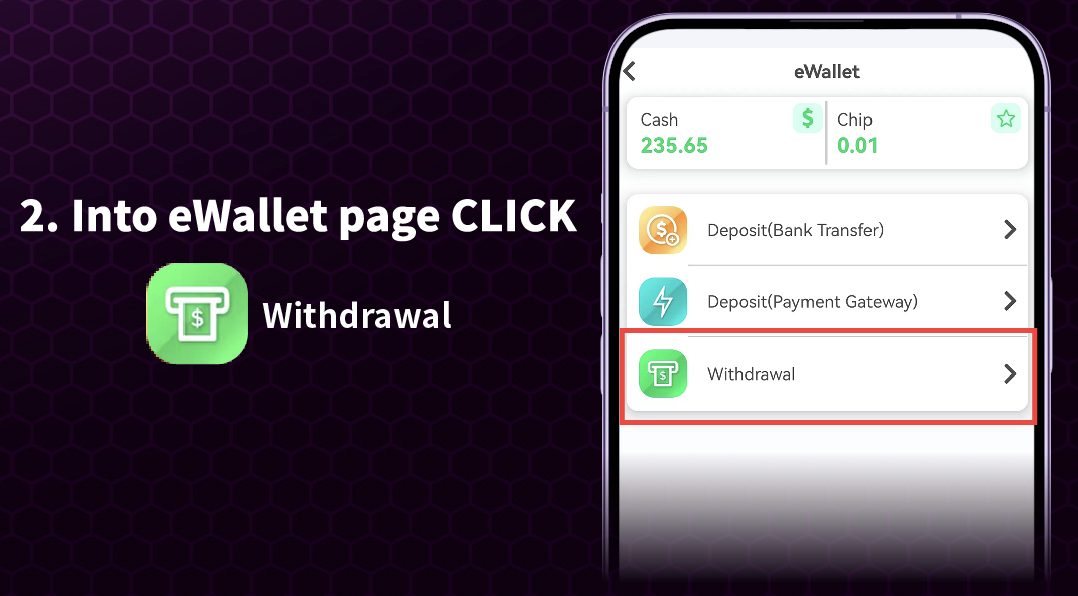
From the APP PAGE, click on the "Withdrawal" option. This will take you to the eWallet page specifically for withdrawal processing. On this page, you will see your current balance displayed, along with fields to enter your withdrawal amount. The eWallet page may also show your linked bank account information for reference.
eWallet Page Features
The eWallet page on VWORLD2 Download APP provides a complete overview of your funds. You can see your current balance, pending withdrawals, withdrawal history, and available withdrawal methods. The interface is designed to be intuitive, with clear instructions at each step.
Step 3: Fill in Your Withdrawal Amount
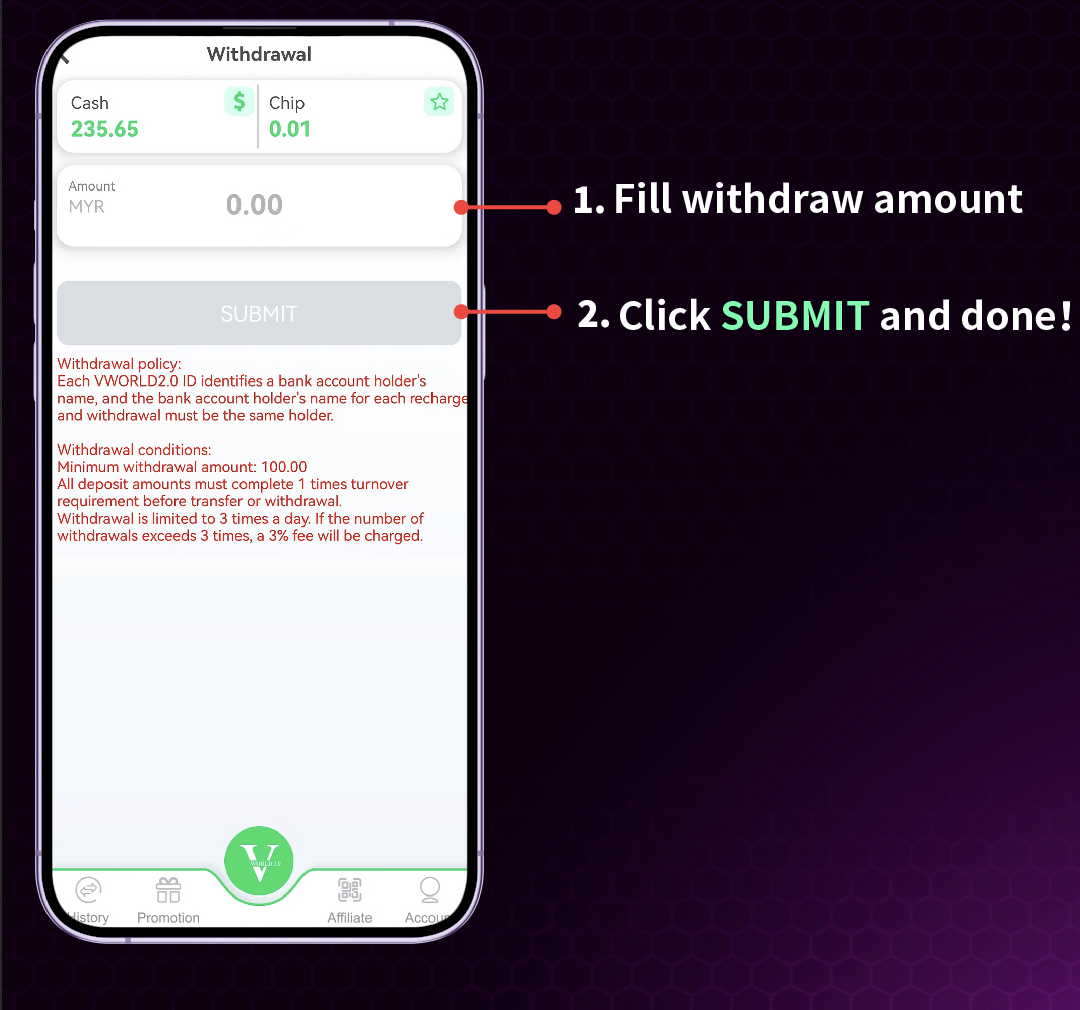
On the eWallet withdrawal page, locate the field labeled with a "$" symbol or "Amount" field. Enter the amount you wish to withdraw from your VWORLD2 account. Ensure the amount does not exceed your available balance and meets any minimum or maximum withdrawal limits that may apply to your account. Double-check the number before proceeding.
Withdrawal Amount Considerations
When entering your withdrawal amount on VWORLD2 Download, be aware of any daily, weekly, or monthly withdrawal limits that may apply based on your account status. Some promotions may also have specific withdrawal restrictions. If you are unsure about limits, check the terms and conditions or contact customer support before submitting.
Step 4: Click SUBMIT and Complete Your Withdrawal
After entering your desired withdrawal amount, review all information one final time. Verify that the amount is correct and that your bank account details on file are accurate. Click the "Submit" button to process your withdrawal request. Once submitted, you will receive a confirmation message indicating that your withdrawal request has been received and is being processed.
What Happens After Submission
After clicking Submit on VWORLD2 Download APP, your withdrawal request enters the processing queue. Processing times vary but typically range from a few minutes to several hours depending on bank processing times and verification requirements. You can track your withdrawal status in the transaction history section of your eWallet. You will receive a notification once the funds have been transferred to your bank account.
VWORLD2 Download H5 WEB Withdrawal Tutorial – Step by Step
What is H5 WEB Withdrawal?
The H5 WEB version of VWORLD2 Download allows players to request withdrawals directly through their mobile or desktop web browser without using the APP. This is ideal for players who prefer not to install the application or are using devices that do not support the APP. The H5 WEB withdrawal process is similar to the APP but with some interface differences.
Step 1: Access H5 WEB and Click Withdrawal
Open your mobile or desktop browser and navigate to the VWORLD2 official website. Log in to your account using your registered mobile number and password. Once logged in, look for the "H5 PAGE" or main menu. Locate and click on the "Withdrawal" option. This will take you directly to the withdrawal request page.
H5 WEB Interface Overview
The H5 WEB version of VWORLD2 Download is optimized for browser use. The withdrawal option is typically found in the main menu or under the "Finance" or "Wallet" section. The interface may appear slightly different from the APP but contains all the same functionality for processing withdrawals.
Step 2: Check Withdrawal Details and Verify Card Holder Name
On the H5 WEB withdrawal page, you will see your account details displayed. This is a critical step: verify that the "withdraw card holder name" matches exactly with your "game authentic name" (the name you used during registration and authentication). These names must be identical. If they do not match, your withdrawal will be rejected.
Why Name Matching is Essential
VWORLD2 Download strictly enforces name matching requirements to prevent fraud and ensure funds are sent to the correct bank account. The name on your bank account must match the authenticated name on your VWORLD2 account. If you recently changed your name or notice a discrepancy, contact customer support before requesting a withdrawal to update your information.
Step 3: Fill in the Withdrawal Amount
After verifying your name details, locate the amount field on the H5 WEB withdrawal page. Enter the amount you wish to withdraw. Ensure the amount does not exceed your available balance and meets any applicable minimum or maximum limits. Double-check the number for accuracy.
Amount Entry Tips
When entering your withdrawal amount on H5 WEB, be mindful of any fees that may apply (though VWORLD2 typically does not charge withdrawal fees, your bank might). Enter only numerical digits without commas or currency symbols unless specified. The system will display your available balance for reference.
Step 4: Click SUBMIT and Complete Your Withdrawal
Once you have entered your withdrawal amount and verified all details, click the "Submit" button. A confirmation dialog may appear asking you to confirm the transaction. Click "Confirm" or "Yes" to proceed. Your withdrawal request will be submitted for processing, and you will receive an on-screen confirmation.
After Submission on H5 WEB
After submitting your withdrawal request on H5 WEB, you can view its status in your transaction history. The platform will process your request, and funds will be transferred to your bank account. Processing times vary, but you will receive notification once completed.
Important Withdrawal Rules for VWORLD2 Download
Name Matching Requirement
One of the most critical rules for withdrawals on VWORLD2 Download is that the card holder name or bank account holder name must be exactly the same as your game authentic name (the name you provided during registration and verification). Any discrepancy, even a minor one like a missing middle name or different spelling, will result in rejection of your withdrawal request.
Bank Account Binding Required
Before your first withdrawal, you must complete bank account binding. This involves linking your bank account to your VWORLD2 account and verifying ownership. Without completed bank account binding, withdrawal requests cannot be processed. Complete this step early to avoid delays when you want to cash out.
Withdrawal Limits
VWORLD2 Download may impose minimum and maximum withdrawal limits. The minimum withdrawal amount ensures that transfer fees are reasonable, while maximum limits may apply per transaction, per day, or per month. These limits are displayed on the withdrawal page. If you need to withdraw larger amounts, contact customer support to discuss options.
Processing Times
Withdrawal processing times on VWORLD2 Download vary depending on several factors including verification requirements, bank processing times, and the time of day. Typically, withdrawals are processed within minutes to a few hours during business hours. Requests made on weekends or public holidays may take longer due to bank schedules.
No Withdrawal Fees from VWORLD2
VWORLD2 Download does not charge fees for processing withdrawals. However, please note that your bank may impose receiving fees or transfer charges depending on your account type and bank policies. Check with your bank for any applicable fees.
Troubleshooting Common Withdrawal Issues
Withdrawal Rejected Due to Name Mismatch
If your withdrawal is rejected due to name mismatch, immediately check the name on your bank account against your VWORLD2 authenticated name. If there is a discrepancy, contact customer support to update your information. You may need to provide identification documents to verify the correct name.
Insufficient Balance
If your withdrawal request is rejected due to insufficient balance, verify that you have enough withdrawable funds. Remember that bonus funds may have wagering requirements that must be met before they become withdrawable. Check your bonus status and complete any required rolling if necessary.
Withdrawal Not Showing in Bank Account
If your withdrawal was processed but the funds have not appeared in your bank account, first check the processing time estimate. Bank transfers can take 1-3 business days depending on the banks involved. If the estimated time has passed, contact customer support with your transaction ID for assistance.
Technical Issues During Submission
If you encounter technical issues while submitting a withdrawal on either APP or H5 WEB, try refreshing the page or restarting the APP. Clear your browser cache if using H5 WEB. If problems persist, contact customer support via Live Chat for immediate assistance.
Withdrawal Comparison: APP vs H5 WEB on VWORLD2 Download
APP Withdrawal Advantages
The VWORLD2 Download APP offers a smoother withdrawal experience with push notifications for status updates, faster loading times, and the convenience of a dedicated application. The APP remembers your preferences and may offer additional features like biometric login for faster access.
H5 WEB Withdrawal Advantages
The H5 WEB version requires no download, works on any device with a browser, and is ideal for quick withdrawals when you don't have the APP installed. It provides the same core functionality as the APP and is regularly updated without requiring manual APP updates.
Which Should You Choose for Withdrawals?
Both APP and H5 WEB withdrawal methods on VWORLD2 Download are secure and reliable. Choose the APP if you use VWORLD2 frequently and want the convenience of a dedicated app. Choose H5 WEB if you prefer not to install apps or are using a computer or device where APP installation isn't possible.
Frequently Asked Questions About Withdrawals on VWORLD2 Download
How long do withdrawals take?
Withdrawal processing times on VWORLD2 Download typically range from a few minutes to 24 hours depending on verification needs and bank processing schedules. Most withdrawals are processed within 1-2 hours during business days.
Is there a minimum withdrawal amount?
Yes, VWORLD2 Download has a minimum withdrawal amount which is displayed on the withdrawal page. This amount ensures that transfer fees remain reasonable. The minimum may vary based on your account status and chosen withdrawal method.
Can I cancel a withdrawal request?
In some cases, withdrawal requests can be canceled if they are still in pending status. Go to your transaction history, find the pending withdrawal, and look for a cancel option. If the withdrawal has already been processed, it cannot be canceled.
Why was my withdrawal rejected?
Common reasons for withdrawal rejection include: name mismatch between account and bank, insufficient withdrawable balance, unverified bank account, exceeding withdrawal limits, or bonus wagering requirements not met. Check the rejection reason provided and take appropriate action.
Can I withdraw to a different bank account?
Withdrawals on VWORLD2 Download must be made to the bank account that is bound to your account and matches your authenticated name. Withdrawals to third-party accounts are not permitted for security reasons.
Do I need to pay taxes on withdrawals?
Tax obligations vary by country and individual circumstances. VWORLD2 Download does not deduct taxes from withdrawals. It is your responsibility to report gambling winnings according to your local tax laws.
Security Tips for Safe Withdrawals on VWORLD2 Download
Verify All Details Before Submitting
Always double-check your withdrawal amount and bank account details before clicking Submit. Errors can cause delays or funds being sent to incorrect accounts.
Enable Login Notifications
Enable login notifications in your VWORLD2 account settings. This way, you'll be alerted if anyone accesses your account, helping prevent unauthorized withdrawals.
Never Share Your Password
VWORLD2 customer support will never ask for your password or banking PIN. Never share these details with anyone, even if they claim to be from support.
Use Secure Networks
When requesting withdrawals, always use a secure, private internet connection. Avoid using public Wi-Fi networks for financial transactions.
Ready to Withdraw?
Follow our step-by-step tutorial to withdraw your winnings from VWORLD2 quickly and securely.