
 English
 中文
 Melayu
Deposit Tutorial – VWORLD2 Download APP & H5 WEB Guide

VWORLD2 Download APP Deposit Tutorial – Step by Step
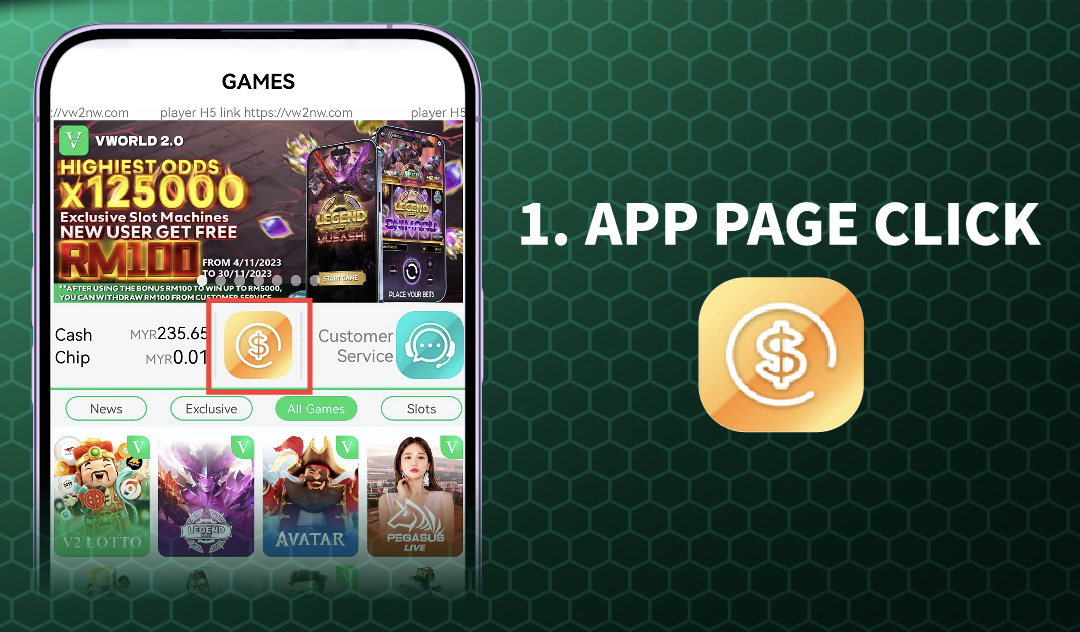
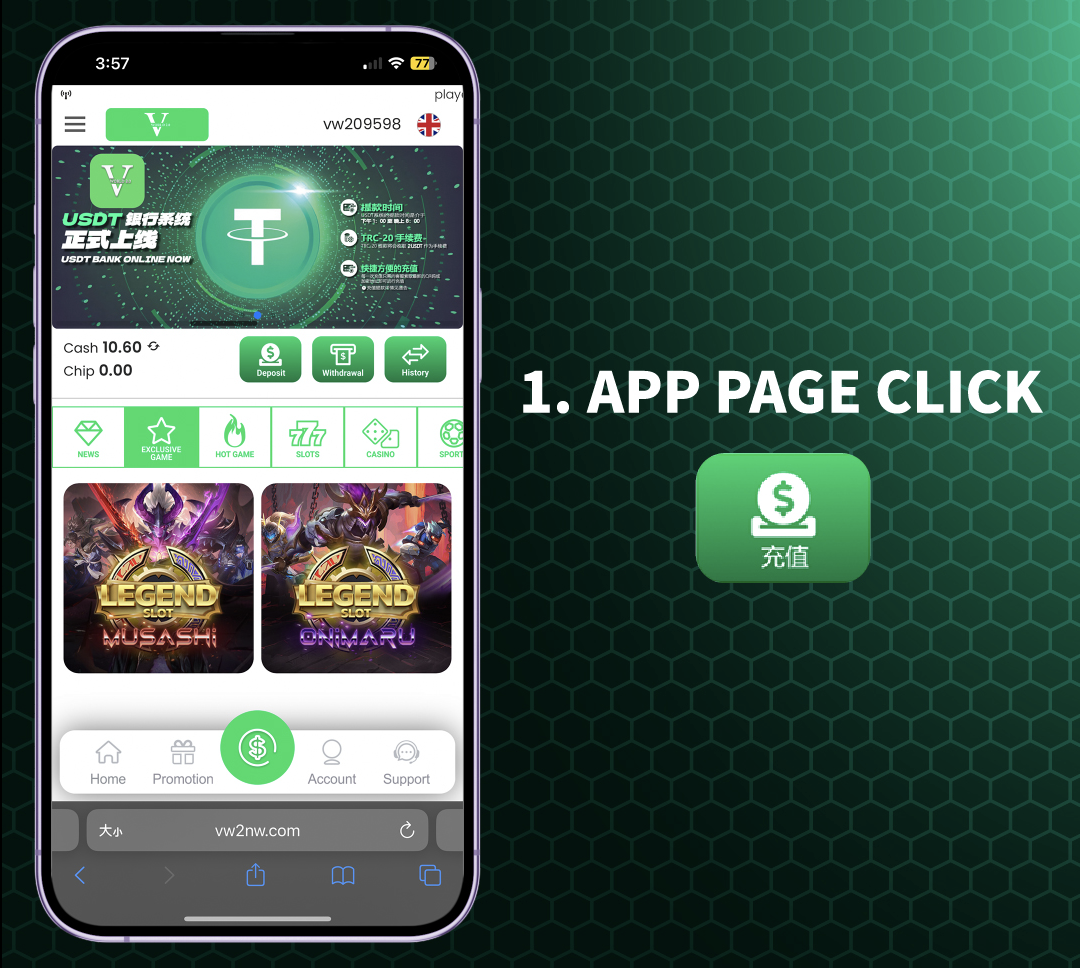
Step 1: Open VWORLD2 APP and Access Wallet Page
After completing your VWORLD2 Download and installing the APP on your mobile device, open the application and log in to your account using your registered mobile number and password. Once logged in, locate and click on the "APP PAGE" button or icon. From there, you will see two main options: Deposit (Bank Transfer) and Withdrawal. For depositing funds, click on "Deposit (Bank Transfer)" to proceed to the next step.
Understanding the APP Interface
The VWORLD2 APP interface is designed for easy navigation. The main APP PAGE displays your account balance at the top, with quick access buttons for deposits and withdrawals. The Deposit (Bank Transfer) option is prominently displayed, making it simple for users to add funds to their eWallet quickly and securely.
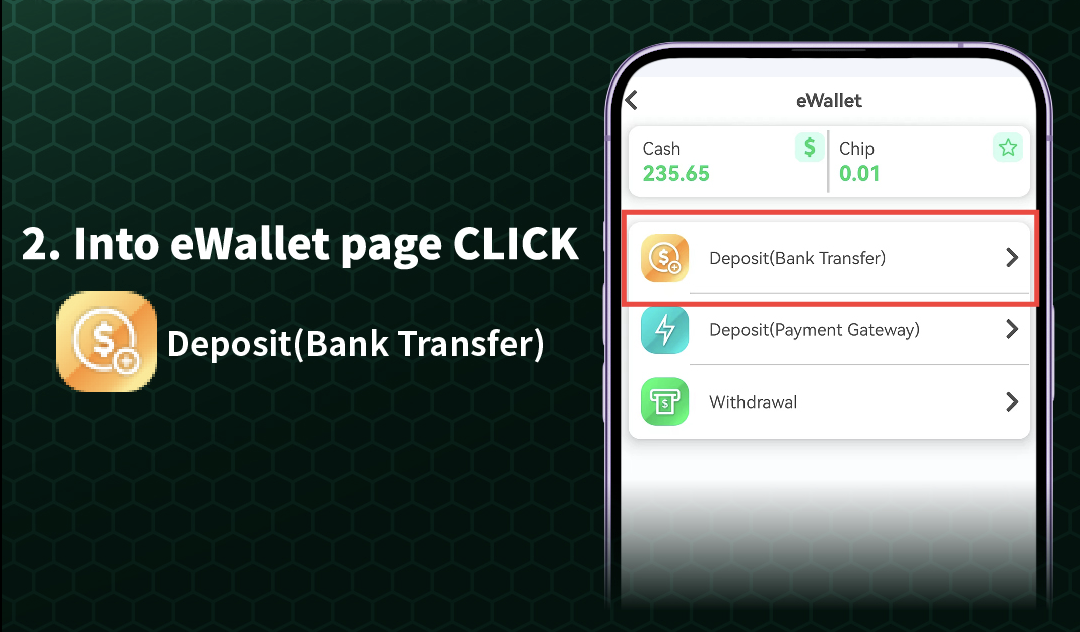
Step 2: Enter eWallet Page and Choose Deposit Method
After clicking Deposit (Bank Transfer) from the APP PAGE, you will be directed to the eWallet page. Here you will find multiple options: Deposit (Bank Transfer), Deposit (Payment Gateway), and Withdrawal. For standard bank transfers, click "Deposit (Bank Transfer)" again. If you prefer alternative payment methods, you can select "Deposit (Payment Gateway)" which may offer credit card, online banking, or e-wallet options depending on your region.
Payment Gateway Options
The Payment Gateway option on VWORLD2 Download provides additional flexibility for players who may not have direct bank transfer access. This includes popular payment methods such as online banking, credit cards, and digital wallets. Fees and processing times may vary depending on the selected payment method.
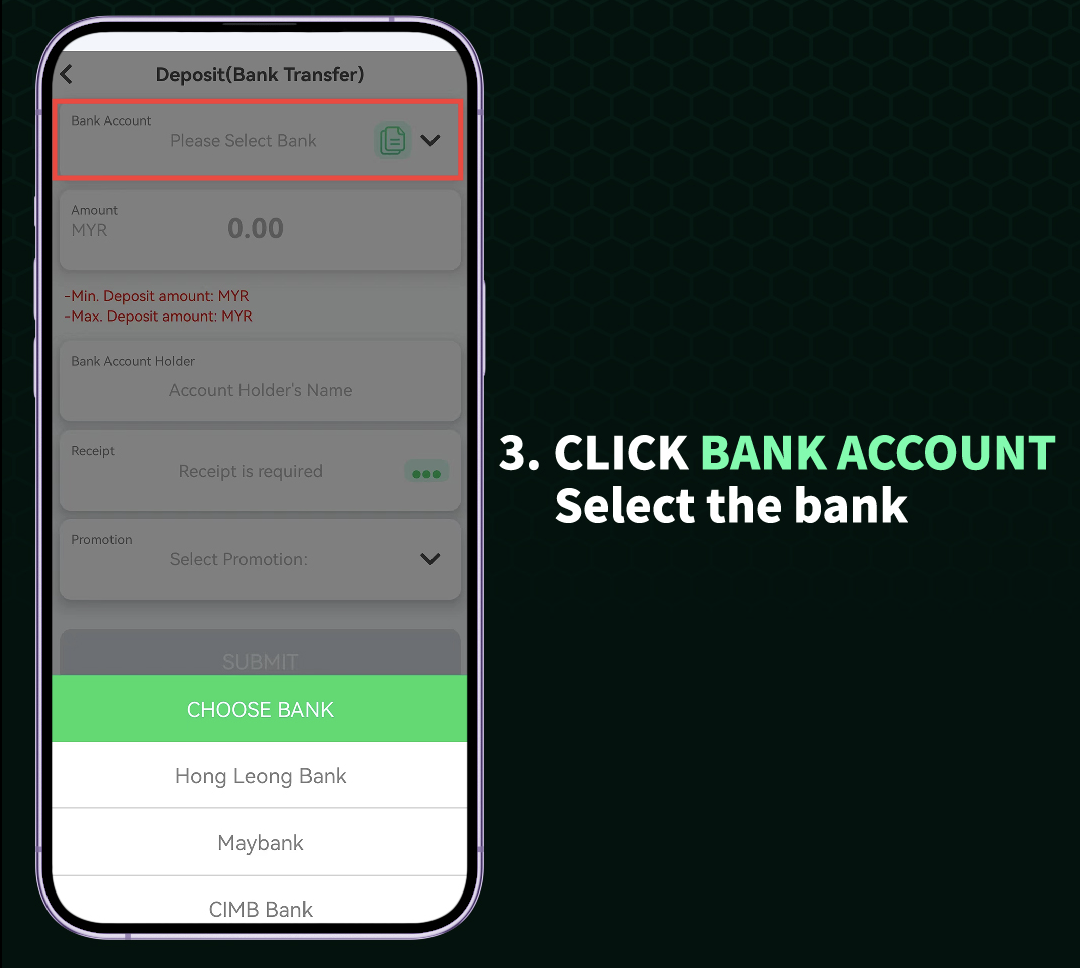
Step 3: Select Your Bank Account
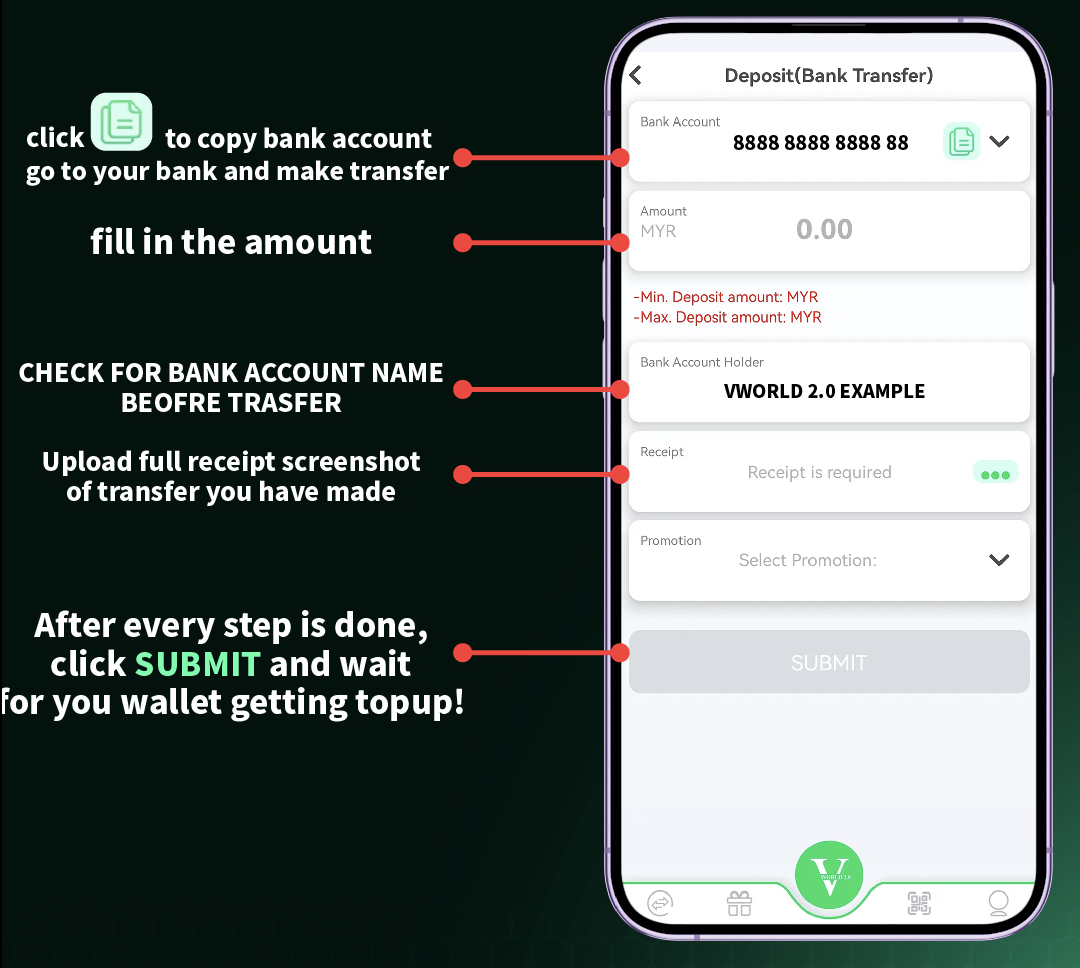
Once you have selected Deposit (Bank Transfer) from the eWallet page, you will be presented with a list of available bank accounts. Click on "BANK ACCOUNT" to expand the list and select your preferred bank from the options provided. The platform supports major banks in Malaysia and the region. After selecting your bank, you will be shown the bank details for transfer, including account number and recipient name.
Important Bank Transfer Information
When making a bank transfer on VWORLD2 Download, always double-check the bank account details displayed. Transfer the exact amount you wish to deposit. After completing the transfer from your banking APP or internet banking, return to the VWORLD2 APP and click "I Have Transferred" or similar confirmation button to notify the system. Your eWallet balance will be updated automatically once the transfer is verified.
VWORLD2 Download H5 WEB Deposit Tutorial – Step by Step
What is H5 WEB Version?
The H5 WEB version of VWORLD2 Download allows players to access the platform directly through their mobile or desktop web browser without installing the APP. This is ideal for players who prefer not to download the application or are using devices that do not support the APP. The H5 WEB version offers the same functionality as the APP, including deposits, withdrawals, and gameplay.
Step 1: Access VWORLD2 via H5 WEB Browser
Open your mobile or desktop browser and navigate to the VWORLD2 official website. Log in to your account using your registered mobile number and password. Once logged in, you will see the main H5 WEB interface. Click on the "APP PAGE" or similarly labeled section to access financial options. From there, you will see Deposit (Bank Transfer) and Withdrawal options. Click "Deposit (Bank Transfer)" to begin.
H5 WEB vs APP Differences
The H5 WEB version of VWORLD2 Download offers nearly identical functionality to the APP, with the main difference being that it runs in your browser rather than as a standalone application. All deposit methods, game access, and account features are available. For iOS users who cannot download the APP, the H5 WEB version with "Add to Home Screen" feature provides an APP-like experience.
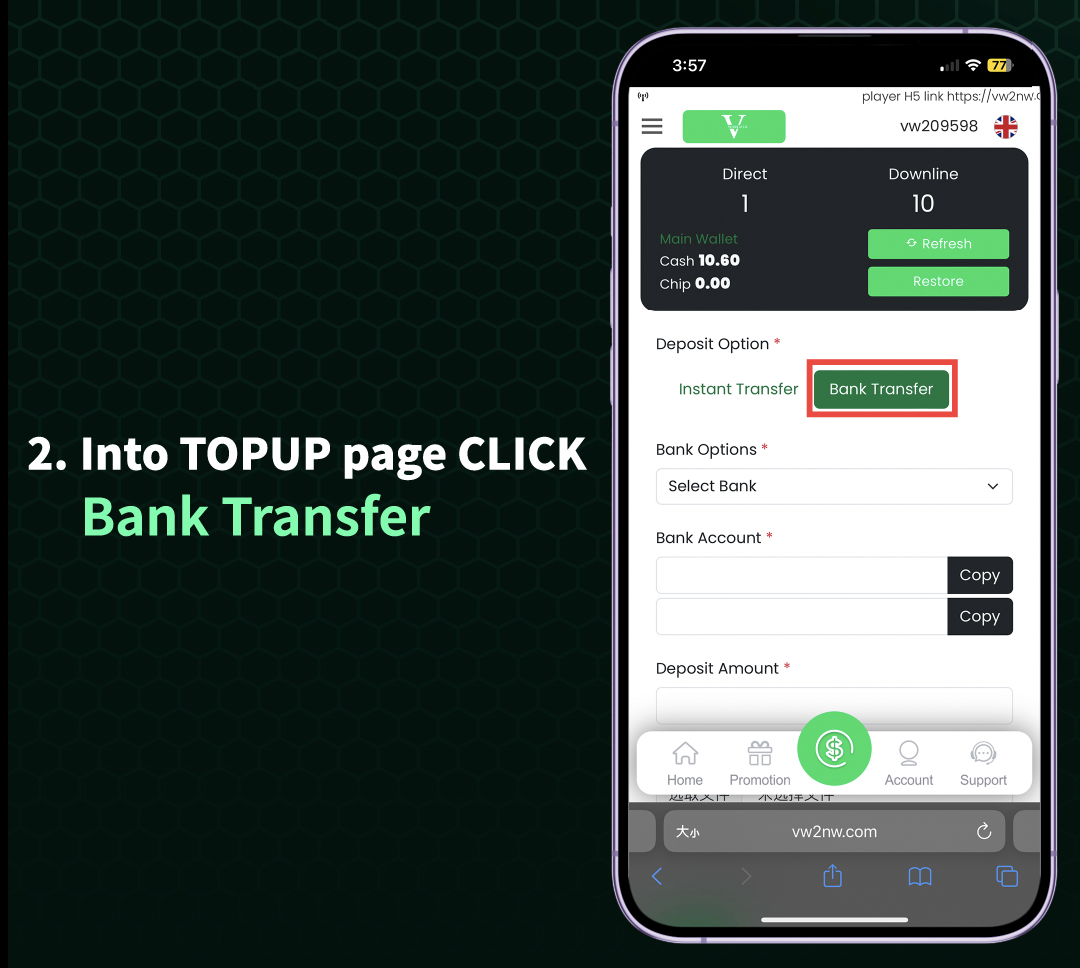
Step 2: Enter TOPUP Page and Select Bank Transfer
After clicking Deposit (Bank Transfer) from the H5 WEB main page, you will be directed to the TOPUP page. On this page, you will see the option "Bank Transfer" clearly displayed. Click on "Bank Transfer" to proceed with your deposit. Unlike the APP version, the H5 WEB TOPUP page may show fewer options, focusing primarily on Bank Transfer for simplicity.
TOPUP Page Features
The H5 WEB TOPUP page displays your current eWallet balance at the top, along with the deposit form below. You can enter the amount you wish to deposit, view any minimum or maximum deposit limits, and see any active deposit promotions or bonuses that may apply to your transaction.
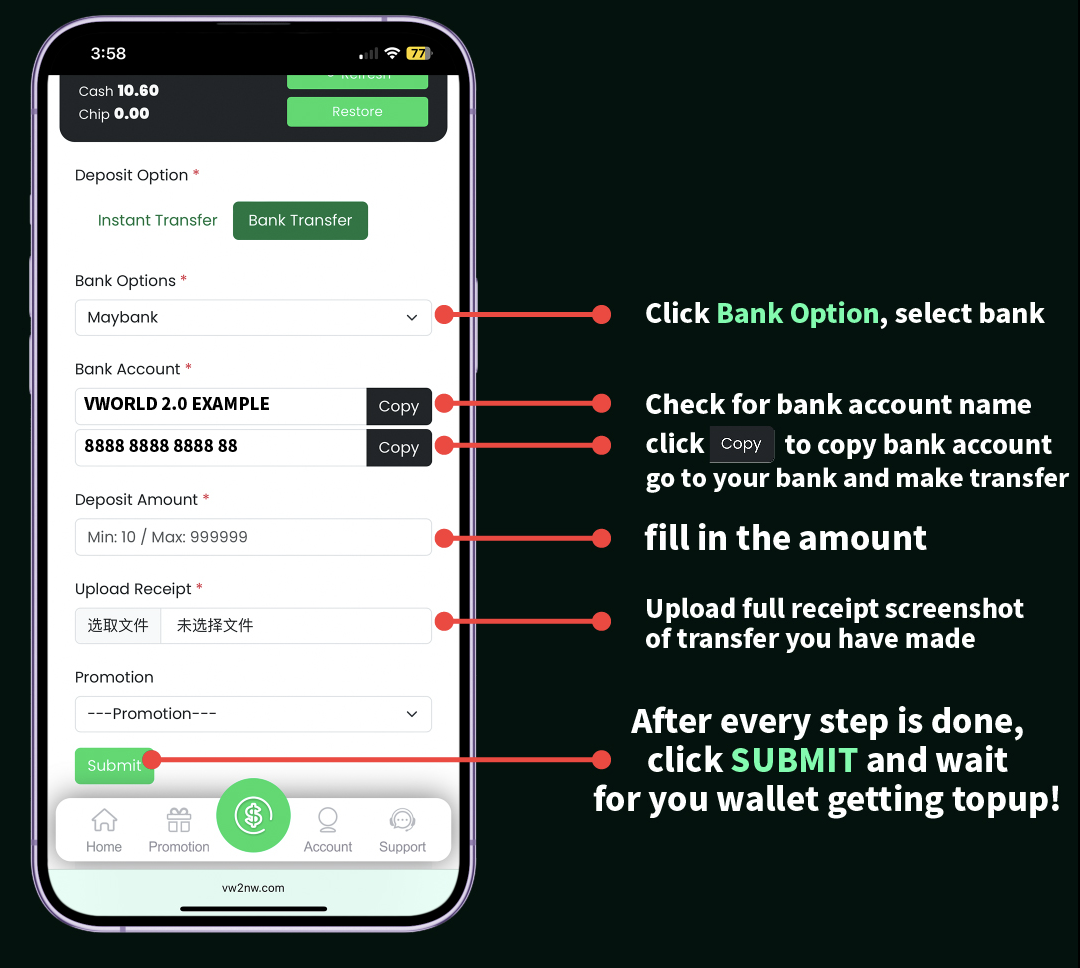
Step 3: Click BANK ACCOUNT and Select Your Bank
On the TOPUP page, click on "BANK ACCOUNT" to view the list of available banks. Select your preferred bank from the dropdown or list. The system will display the bank details for your transfer, including account number, account holder name, and any reference numbers you may need to include. Make a note of these details or keep the page open while you complete your transfer.
Completing Your H5 WEB Deposit
After selecting your bank and noting the transfer details, open your banking APP or internet banking separately and complete the transfer to the provided account. Return to the VWORLD2 H5 WEB TOPUP page and click "Submit" or "I Have Transferred" to notify the platform. Your eWallet will be credited once the transfer is confirmed, typically within a few minutes.
Deposit Methods Comparison: APP vs H5 WEB
APP Deposit Features
The VWORLD2 Download APP offers two deposit methods on the eWallet page: Bank Transfer and Payment Gateway. The APP provides a more streamlined experience with push notifications for deposit confirmations and easier access to deposit history. The APP also remembers your preferred bank for faster future deposits.
H5 WEB Deposit Features
The H5 WEB version focuses primarily on Bank Transfer for deposits, making it simple and straightforward. No download is required, and the interface is optimized for both mobile and desktop browsers. The H5 WEB version is ideal for quick deposits when you don't have access to your usual device with the APP installed.
Which Deposit Method Should You Choose?
Both APP and H5 WEB deposit methods are secure and reliable on VWORLD2 Download. Choose the APP if you prefer a dedicated application with faster access and push notifications. Choose H5 WEB if you don't want to download the APP or are using a device where APP installation is not possible. Both methods ultimately deposit funds into your eWallet for gameplay across all categories.
Important Deposit Tips for VWORLD2 Download Users
Always Double-Check Bank Details
Before confirming any bank transfer on VWORLD2 Download, always double-check the bank account number, account holder name, and transfer amount. Mistakes in bank details can result in delayed deposits or lost funds. The platform is not responsible for transfers made to incorrect accounts due to user error.
Keep Deposit Screenshots
For your records and in case of any disputes, always take a screenshot of your completed bank transfer confirmation. This includes the transaction reference number, date, time, and amount. If your eWallet is not credited within a reasonable time, contact customer support with this screenshot for faster resolution.
Check for Deposit Promotions
Before making a deposit on VWORLD2 Download, check the PROMOTION page for any active deposit bonuses. Many promotions offer extra credits or rebates on qualifying deposits. Make sure to read the terms and conditions, including minimum deposit amounts and wagering requirements.
Understand Deposit Limits
VWORLD2 Download may have minimum and maximum deposit limits depending on your account status and chosen payment method. These limits are displayed on the deposit page. If you need to deposit larger amounts, contact customer support to discuss higher limits or alternative arrangements.
Frequently Asked Questions About Deposits on VWORLD2 Download
How long do deposits take to credit?
Most bank transfer deposits on VWORLD2 Download credit within 5-15 minutes after the transfer is completed and confirmed. However, during peak times or bank maintenance periods, it may take up to 30 minutes. If your deposit does not credit after 30 minutes, contact customer support with your transfer proof.
Is there a fee for deposits?
VWORLD2 Download does not charge fees for deposits. However, your bank may impose transfer fees depending on your account type and the transfer method used. Check with your bank for any applicable charges.
Can I deposit using the H5 WEB version on desktop?
Yes, the H5 WEB version of VWORLD2 Download works on desktop browsers as well. Simply visit the website from your computer, log in, and follow the same H5 WEB deposit tutorial steps. The interface may appear slightly different but the functionality is the same.
What should I do if my deposit doesn't credit?
If your deposit does not credit to your eWallet within 30 minutes of completing the transfer, first check that you used the correct bank details. Then, take a screenshot of your transfer confirmation and contact VWORLD2 customer support via Live Chat. Provide the screenshot and your account details for assistance.
Can I deposit using Payment Gateway on H5 WEB?
The H5 WEB version of VWORLD2 Download primarily focuses on Bank Transfer for deposits. For Payment Gateway options, it is recommended to use the APP version after completing your VWORLD2 Download, as the APP offers both Bank Transfer and Payment Gateway methods on the eWallet page.
Security Tips for Safe Deposits on VWORLD2 Download
Only Use Official Channels
Always access VWORLD2 Download through the official website or APP downloaded from official sources. Never click on suspicious links or use third-party websites claiming to offer deposits. Phishing sites may attempt to steal your banking information.
Enable Two-Factor Authentication
If available, enable two-factor authentication on your VWORLD2 account for an extra layer of security. This helps protect your account even if someone obtains your password.
Never Share Your Password
VWORLD2 customer support will never ask for your password or banking PIN. Never share these details with anyone. Only enter your banking information on your bank's official website or APP when completing transfers.
Ready to Deposit?
Follow our step-by-step tutorial to add funds to your VWORLD2 account and start playing today.